


Train On-Demand
Choose the training you want from 18,000+ videos of instructor-led content. Watch anywhere.
Learn MoreExperience an on-demand training platform that puts real-world, practical learning first - regardless of skill level. Learn from expert instructors, dive into immersive labs, and prove your knowledge in Networking, Cybersecurity, and Cloud.
Trust your upskilling to the organization that prioritizes hands-on training. Just like the world's top companies have.













As cybersecurity, networking, and cloud computing increasingly overlap, the need for cross-training and upskilling grows - at every level of a career. INE offers a comprehensive learning platform that immerses and engages our practitioners in continuous learning throughout their careers.
Take your technical training into your own hands and stay engaged with our learn-by-doing platform where you can put your skills to the test with hands-on exercises, quizzes, and labs.
Choose the training you want from 18,000+ videos of instructor-led content. Watch anywhere.
Learn More
INE quizzes, labs, projects, and exercises help reinforce your knowledge.
Learn MoreOrganized training helps guide you through the most relevant subjects for certification prep.
Learn MoreWe add new courses and learning materials to the platform weekly so you're always up-to-date.
Learn MoreWhen you're looking to tackle your next major project or defend your infrastructure from cyber warfare, you don't want to just trust anyone with a webcam to show you how. At INE, we've hired the world's leading experts in Cloud, Cyber Security, Data Science and Networking so you can simply learn. Let us do the heavy lifting for you.

Data Science
Author @ Packt Publishing Data Science Consultant PhD Signal Processing
CCDE #2013::13 CCIEx4 #8593
AWS Associate System Architect, Associate Developer and Associate Systems Operations
Ph.D. Philosophy
GIAC Certified Forensic Analyst
Security+, CISSP, CTT+, eJPT
CCIE #4923
CCIE Security (#25665) CCNA R&S/Security CCNP R&S/Security
CCIEx5 #21282 CCNA/CCNP R&S CCNA/CCNP Security CCSA CCSI #34999 CEH JNCIA MCSE
eCTHP, eCPTX, OSCE, OSCP, GCFA, AZ-500, Microsoft INF260x
Defensive Cyber Security
Director, Cyber Security & CISSP
Cloud
Microsoft MVP, Cloud and Datacenter
InfoSec Researcher
Cyber Security
AWS Cloud Practitioner, AWS Solutions Architect-Associate
At INE, it is our mission to give IT and digital learning students access to the world’s best resources, allowing them to achieve their training goals. As a result, we have carefully cultivated the industry’s most in-depth course materials focused on Networking, Cloud, Data Science, and Cyber Security training.


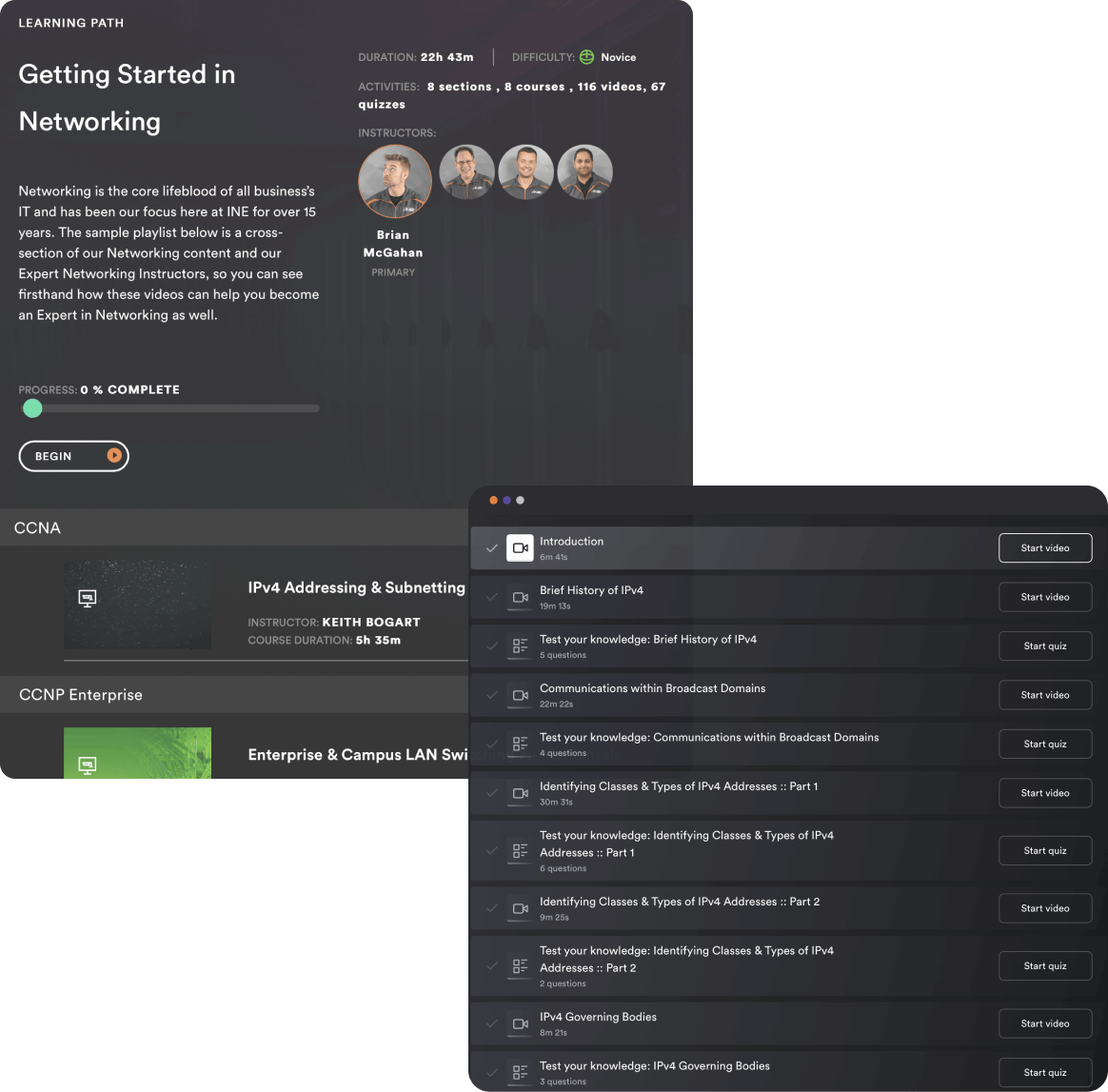
INE Learning Paths present topics in a strategic order, ensuring you never overlook crucial information, while naturally building upon lessons already learned. As you work through each Learning Path, you can keep track of your progress and be able pick up exactly where you left off. You'll always have a clear picture of what you've accomplished and what you still have left to conquer.
We work exclusively with in-house industry experts to provide aspiring technology leaders with the advanced content they need to take the next step in their technology career, stay up to date on the latest advancements, or achieve a certification. Our courses are a unique blend of in-depth instruction paired with hands-on exercises and quizzes that create a complete and proven training strategy.

Contact us to request a free demo of our platform or quote.
Check out our INE Live to see what hot topics we’re talking about next! Don’t forget to follow us on social media for a heads up on when we go live with breaking news events or other announcements.
/ LET’S GET IN TOUCH
Whether you’d like more information on our training materials or are interested in a free demo, please contact us at any time.
Monday - Friday8:00 AM - 5:00 PM Eastern Time
US Customer1-877-224-8987
Outside US+1-984-444-9917
Sales Emailinfo@ine.com
Support Emailsupport@ine.com